Contents
- 1 How to Care for My Laptop?
- 2 How Often Should You Clean and Maintain Your Laptop?
- 3 Cleaning Your Laptop Safely: Exterior and Keyboard
- 4 How Can You Clean a Laptop Screen?
- 5 Cleaning Vents and Preventing Overheating
- 6 Software Maintenance: The Half of Laptop Care People Skip
- 7 Battery Care Tips for a Longer Lifespan
- 8 Storage and Transport Care
- 9 Common Mistakes That Shorten a Laptop’s Lifespan
- 10 Frequently Asked Questions
- 11 Conclusion
How to Care for My Laptop?
A laptop rarely fails all at once. It’s usually a slow build-up of dust in the fans, a sticky keyboard from crumbs and spilled coffee, a battery that’s been left plugged in and fully charged for years, or a screen wiped one too many times with the wrong cloth. None of these problems are dramatic on their own, but together they’re the reason a laptop that should last six or seven years starts feeling sluggish, hot, or fragile after two or three.
The good news is that real laptop maintenance takes minutes a week, not hours, and most of it comes down to a handful of habits rather than expensive tools or professional servicing. This guide covers how to clean laptop surfaces safely, how to take care of laptop hardware and software over its full lifespan, and the small daily habits that add up to a noticeably longer-lasting machine.
How Often Should You Clean and Maintain Your Laptop?
Different parts of a laptop accumulate dirt and wear at very different rates, so a single “clean it once a month” rule doesn’t really hold up. Here’s a more realistic breakdown:
| Component | Recommended Frequency | Why It Matters |
| Screen | Every 1–2 weeks | Prevents smudges from becoming harder to remove and reduces the temptation to press too hard |
| Keyboard | Weekly (light dusting), monthly (deep clean) | Crumbs and skin oils cause sticky keys and, over time, corrosion under the keycaps |
| Exterior/chassis | Weekly wipe-down | Removes oils and grime before they build up in seams and ports |
| Vents and fans | Every 3–6 months | Dust buildup is the single biggest cause of overheating and fan noise increasing over time |
| Software updates | As released (check monthly) | Security patches and performance fixes accumulate quickly if ignored |
| Storage cleanup | Every 1–3 months | Prevents a nearly-full drive from slowing down everyday performance |
| Battery calibration check | Every 2–3 months | Helps you catch abnormal battery degradation early |
Cleaning Your Laptop Safely: Exterior and Keyboard
Before cleaning anything, always shut the laptop down completely and unplug the charger. Cleaning a powered-on device — especially near the keyboard or ports — is one of the most common ways moisture causes actual internal damage rather than just a cosmetic mess.
For the exterior and keyboard, a soft, lint-free cloth lightly dampened with water is enough for most everyday grime. For fingerprint smudges or oily residue that water alone won’t lift, a cloth lightly moistened with a 70% isopropyl alcohol solution works well and is the same method most manufacturers, including Apple, officially recommend for their hardware. Never spray any liquid directly onto the laptop — always apply it to the cloth first — and avoid letting moisture pool near the hinge, ports, or the gap around the keys.
For the gaps between keys, a can of compressed air held at a slight angle (never straight down, and never shaken beforehand) blows out crumbs and dust effectively. If you want a deeper clean, a soft-bristled brush — even a clean, dry paintbrush — can loosen debris before a final pass with compressed air.
How Can You Clean a Laptop Screen?
Laptop screens need a gentler approach than the rest of the body, since most modern displays have anti-glare or anti-reflective coatings that can be damaged by the wrong chemicals or excessive pressure.
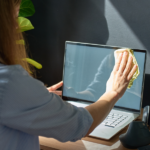
Start with a completely dry, soft microfiber cloth to remove loose dust — this alone handles a surprising amount of daily grime. If smudges remain, dampen the cloth (not the screen) with plain water and wipe gently in one direction rather than scrubbing in circles. Only move to a 70% isopropyl alcohol solution for stubborn marks that water can’t remove, and even then, apply it sparingly to the cloth rather than the screen itself.
A few materials to avoid entirely on any laptop screen: paper towels and tissues (both can scratch coated displays), household glass cleaners containing ammonia, anything with bleach or acetone, and abrasive sponges. Never press hard enough to feel the screen flex under the cloth — coated displays scratch and degrade more easily than they look like they should.
Safe vs. Unsafe Cleaning Materials
| Safe to Use | Avoid |
| Soft, lint-free microfiber cloth | Paper towels or tissues |
| Distilled or plain water (lightly dampened cloth) | Household glass or window cleaner |
| 70% isopropyl alcohol solution (on cloth, not sprayed directly) | Bleach, ammonia, or acetone-based cleaners |
| Compressed air (held at an angle) | Vacuum cleaners directly on the keyboard (static risk) |
| Soft-bristled brush | Abrasive sponges or scouring pads |
| Cotton swabs for tight corners and ports | Cleaning while the laptop is powered on |
Cleaning Vents and Preventing Overheating
Heat is one of the fastest ways to shorten a laptop’s lifespan, and dust-clogged vents are the most common cause of it. Over months of regular use, dust and pet hair collect around the intake and exhaust vents, forcing the internal fans to work harder and run hotter just to maintain the same cooling performance.
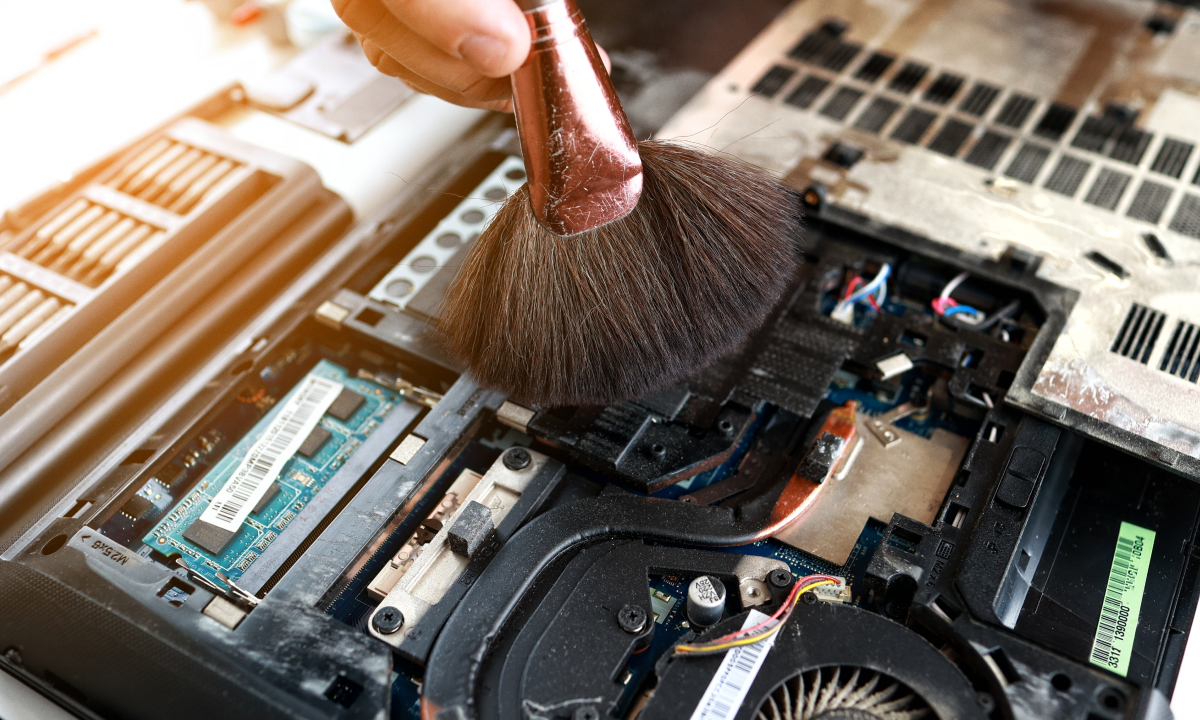
Every few months, use compressed air in short bursts to blow dust out of the vents, ideally while holding the laptop at an angle so debris falls away from the internals rather than deeper inside. If you notice the fan running loudly and constantly even during light tasks, or the bottom of the laptop feels unusually hot during normal use, that’s often a clear sign it’s overdue for a vent cleaning — and, if the noise continues after cleaning, potentially a sign the internal cooling paste or fan itself needs professional attention.
Simple daily habits help too: using a laptop on a hard, flat surface rather than a soft blanket or pillow (which blocks airflow from underneath), and avoiding prolonged use in direct sunlight or hot cars, both meaningfully reduce the thermal stress your laptop deals with day to day.
Software Maintenance: The Half of Laptop Care People Skip
Physical cleaning gets most of the attention, but software neglect causes just as much long-term slowdown. A few habits make a real difference:
- Install operating system and security updates promptly. Beyond security, many updates include real performance and battery-efficiency improvements.
- Restart regularly rather than only closing the lid. Sleep mode is convenient, but a full restart clears memory leaks and temporary processes that quietly accumulate over days or weeks.
- Keep at least 10–15% of your storage drive free. Both Windows and macOS use free drive space for temporary files and virtual memory; a nearly full drive measurably slows down everyday performance.
- Uninstall unused applications and disable unnecessary startup programs. Background processes you never intentionally use are a common, invisible drag on both performance and battery life.
- Run a malware/security scan periodically, even if you’re careful about what you download — some threats arrive through browser extensions or compromised legitimate websites rather than obvious downloads.
Battery Care Tips for a Longer Lifespan
Lithium-ion batteries degrade through chemistry, not just age, and a few habits noticeably slow that process:
- Avoid keeping the laptop at 100% charge for extended periods when it’s realistic to do otherwise; many modern laptops include an optimized charging feature that limits how long the battery sits at full charge, and it’s worth turning on if available.
- Don’t let the battery repeatedly drain to 0% — occasional full discharges won’t cause immediate harm, but making it a regular habit accelerates long-term capacity loss.
- Keep the laptop out of extreme heat, including direct sunlight through a car window, since heat degrades battery chemistry faster than almost any other factor.
- If storing the laptop unused for weeks or longer, leave it around 50% charge rather than fully charged or fully drained, which is the range battery manufacturers generally recommend for long-term storage.

Storage and Transport Care
How a laptop is carried and stored between uses matters more than most people assume. A padded sleeve or case reduces the risk of scratches and shock damage during transport, and it’s worth choosing one sized specifically for your laptop rather than a loose-fitting generic option, since excess movement inside a bag increases impact risk. Avoid stacking heavy items directly on top of a closed laptop, since sustained pressure on the lid can affect the screen over time, even when the device is powered off.
Common Mistakes That Shorten a Laptop’s Lifespan
A few habits show up again and again in laptops that fail early, and none of them look dangerous in the moment:
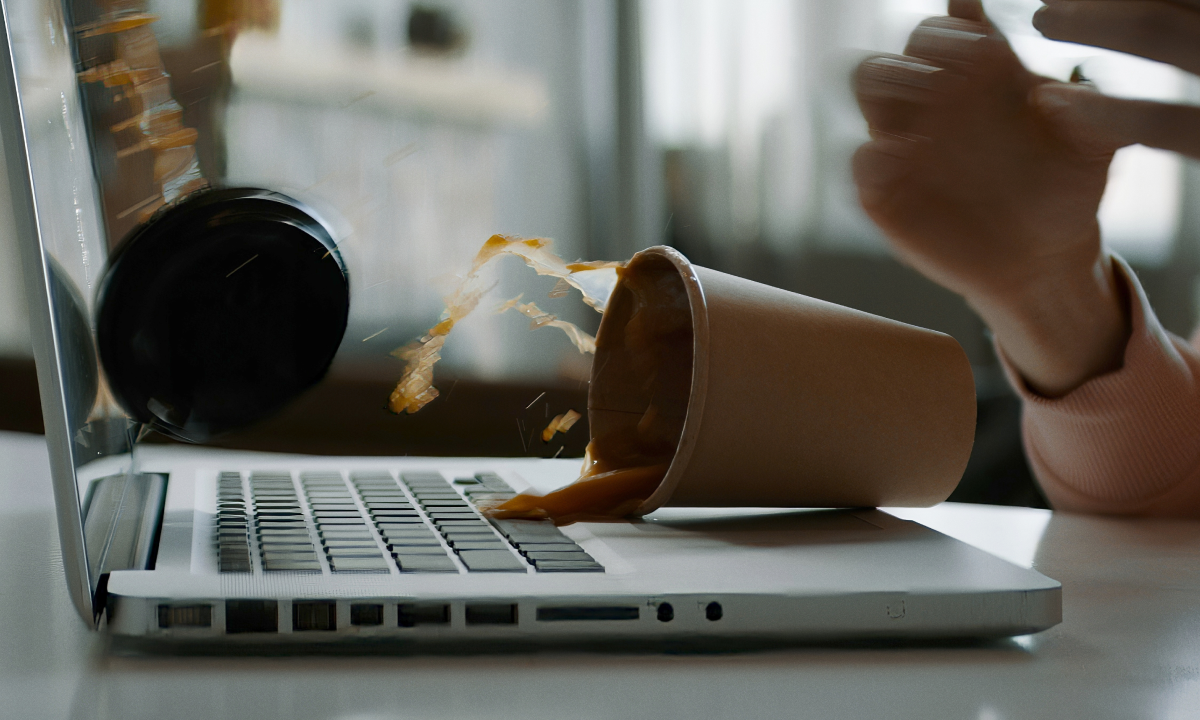
- Eating or drinking near an open laptop. A single spill can cause instant damage, but even repeated small crumbs and splashes near the keyboard cause slow, cumulative wear that’s harder to trace back to a single cause.
- Closing the lid on a wet or dirty keyboard. Trapping moisture or debris against the screen for hours at a time can transfer grime directly onto the display.
- Carrying a laptop loosely in a bag with other hard objects. Keys, water bottles, and chargers rattling against a laptop during a commute cause small dents and scratches that add up over months.
- Ignoring unusual fan noise for months. A fan that suddenly runs louder or more constantly than usual is almost always trying to tell you something before a bigger problem develops.
- Using a laptop on a bed, couch cushion, or lap for hours at a time. Soft surfaces block the vents underneath, and prolonged use this way is one of the most common, avoidable causes of excess heat buildup.
Frequently Asked Questions
How often should I clean my laptop? Wipe the exterior and screen weekly, deep-clean the keyboard monthly, and clear dust from the vents every three to six months, depending on your environment.
Is it safe to use alcohol wipes on a laptop screen? A cloth lightly moistened with a 70% isopropyl alcohol solution is generally safe for stubborn smudges, but plain water should be tried first, and the alcohol should always go on the cloth, never directly on the screen.
Why does my laptop get hot even during light use? This is usually a sign that dust has built up in the vents or fans, restricting airflow. A compressed-air cleaning often resolves it; persistent heat after cleaning may indicate a deeper cooling issue worth professional attention.
Should I always keep my laptop plugged in? No. Keeping a laptop at 100% charge continuously accelerates long-term battery wear. If your laptop offers an optimized or limited charging mode, using it helps extend battery lifespan.
Can I use a vacuum cleaner to clean my keyboard? It’s best avoided directly on the keyboard, since standard vacuums can generate static electricity that risks damaging internal components. Compressed air is the safer standard tool for this job.
Conclusion
Caring for your laptop isn’t about a single deep clean every few months — it’s the accumulation of small, consistent habits: wiping down the screen and keyboard regularly, clearing dust from the vents before overheating becomes a real problem, keeping the operating system updated, and treating the battery kindly rather than leaving it permanently at full charge. None of this requires special skills or expensive products, just the same few minutes applied consistently. Do that, and there’s a genuinely good chance your laptop will still feel solid, quiet, and reasonably fast well past the point where a neglected one would already be showing its age.
Stay up-to-date with our news!
Subscribe to our mailing list and be the first to know about new promotions and special offers from the store!